The Institute of Smart Systems and Artificial Intelligence (ISSAI) was founded at Nazarbayev University in September 2019 as a national driver of artificial intelligence research, innovation, and technological development in Kazakhstan.
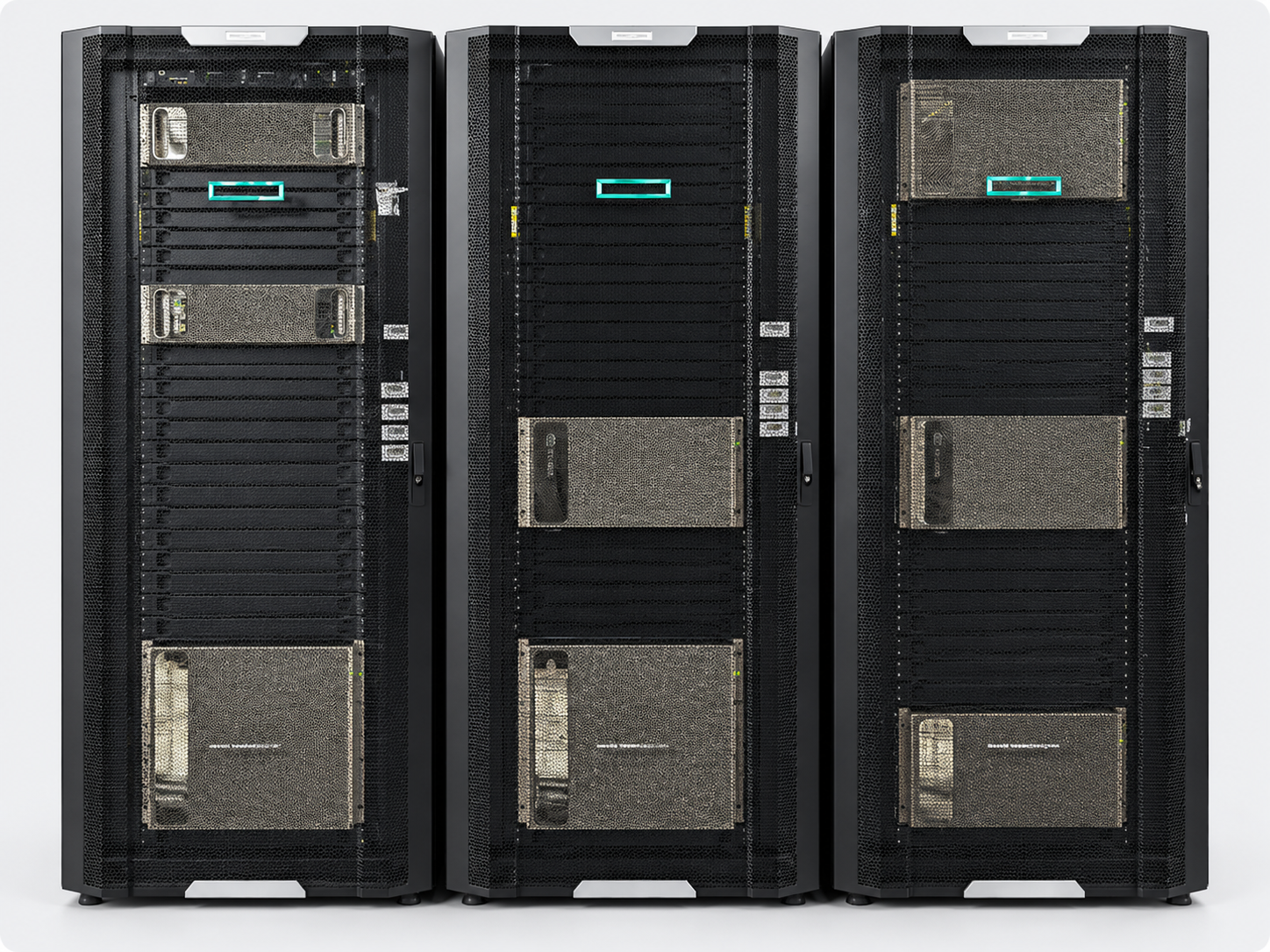
ISSAI was a pioneer of NVIDIA DGX server adoption in Kazakhstan — the DGX rack pictured below was among the first installations of this class in the country, and it set the course for the heterogeneous DGX cluster that the Institute operates today (see Hardware specifications below).
Our AI Computing cluster consists of many interconnected computing elements (nodes) that operate in parallel with each other, delivering the processing power needed to train deep learning models. The current AI computing resources at ISSAI consist of 7 computing nodes:
On this page you will find everything you need to start working with the cluster: how to get access and connect, the guidelines for using the resources, the hardware specifications, and the research data storage services.
On this page: Getting started · General guidelines · Hardware specifications · Research data storage · University HPC (Irgetas)
This section walks you through the first steps: requesting an account, connecting through the SSH jump host, working on the computing nodes, and finding your way around your workspace.
Cluster access is granted upon registration, and all connections use SSH key authentication — the cluster does not use passwords. To request an account, write to issai@nu.edu.kz and attach your public SSH key (for example, the contents of ~/.ssh/id_ed25519.pub). Never send your private key to anyone. Once your account is created, you will receive a personal login name and a preconfigured SSH config file by email.
If you do not yet have an SSH key pair, generate one first — the official GitHub guide to generating a new SSH key covers Windows, macOS, and Linux step by step (in short: run ssh-keygen -t ed25519 in any terminal and send us the resulting .pub file).
All connections go through the SSH jump host issai_gateway, which forwards you to the computing nodes — it is a gateway only, not a working environment, so please do not run any computations on it.
| Parameter | Value |
|---|---|
| Jump host | issai_gateway |
| Protocol | Secure Shell (SSH) |
| Port | 11223 |
| Authentication | SSH key authentication — the public key you provided at registration |
Any terminal with an SSH client will do: the built-in terminal on Linux and macOS, PowerShell or Command Prompt on Windows (OpenSSH is included since Windows 10), or a graphical client such as PuTTY or MobaXterm.
If you have preconfigured the config file we sent you by email, open a terminal and execute:
ssh remote_serverReplace remote_server with the name of the computing node you want to work on — each Host block in your config file defines one node. Without the preconfigured file, connect through the jump host directly with:
ssh -J user_name@issai_gateway:11223 user_name@node_addressThe first time you connect, SSH will ask you to confirm the server’s host key — type yes. Once connected, you land on the computing node, where you can edit and compile code and run your tasks. Graphical applications can also be launched from the command line when your project requires them.
The preconfigured ~/.ssh/config file looks like this:
Host issai_gateway
    HostName xx.xxx.xxx.xxx
    User user_name
    Port 11223
    IdentityFile ~/.ssh/id_rsa
    ForwardAgent yes
Host remote_server
    HostName xx.xx.xx.xx
    User user_name
    Port 22
    ProxyJump issai_gateway
    IdentityFile ~/.ssh/id_rsa
    ForwardAgent yes
    LocalForward 222 localhost:22
Here, issai_gateway is the ISSAI SSH jump host, and remote_server is one of the DGX computing nodes reached through it (ProxyJump). The LocalForward line maps local port 222 to port 22 of that node, so tools such as scp, rsync, or IDE remote connections can reach the node directly via localhost:222.
Once connected, you work directly on a computing node — the ISSAI cluster has no job queue or workload manager (the University HPC cluster Irgetas, described below, uses Slurm for that). The nodes are shared: several users may work on the same node at the same time, so a few habits keep everything running smoothly for everyone.
nvidia-smi (or nvtop, an htop-like GPU monitor) to see which GPUs are busy and how much memory is free, and launch your task on the least-loaded GPU rather than the first one.CUDA_VISIBLE_DEVICES (for example, CUDA_VISIBLE_DEVICES=2,3 python train.py) so that it does not silently occupy all of them — leave the free GPUs for other users.For long-running tasks, use tmux or screen (or start the task with nohup) so that it keeps running if your SSH session is interrupted.
Each user has a personal home directory on the cluster that serves as a workspace; you are placed there automatically when you log in. Each storage location has its purpose — use it accordingly:
| Location | Use it for | Notes |
|---|---|---|
Home directory (~) |
Scripts, source code, configuration, small result files | Keep it lean — do not store large datasets here |
/raid (local scratch) |
Temporary data of tasks with intensive disk I/O | Delete your files once the task is complete so the space is freed for other users, and never keep the only copy of important data here |
| ISSAI S3 Object Storage | Datasets, checkpoints, and training results you want to keep or share | High-capacity storage reachable from the cluster and from your workstation (see Research data storage below) |
The terms of use are available online here: Terms of Use.
The maximum execution time for a single task is two weeks — after that, the task is automatically cancelled. If more time is needed, submit a separate request to the ISSAI administration.
The resources are provided for the research purposes for which access was granted. Please observe a few shared responsibilities:
Technical support is provided to all AI Computing cluster users — from task preparation and software installation to advice on working with the cluster.
The ISSAI AI Computing resources consist of 7 computing nodes for task execution and one head node that performs cluster management. All nodes are interconnected via an InfiniBand network. Each computing node is equipped with two x86_64 CPUs (Intel Xeon or AMD EPYC, depending on the generation), and some of the nodes are additionally equipped with NVIDIA GPUs. The cluster architecture is heterogeneous, combining nodes of different generations and technical parameters.
Several network-attached storage systems are available for storing user data; for tasks with intensive I/O, a dedicated NVMe disk array with an NFS file system is available.
The computing nodes are based on the following NVIDIA DGX systems:
The following NVIDIA GPUs are available to ISSAI users:
| GPU model | Arch | CUDA | FP64 power | Tensor power | Memory |
|---|---|---|---|---|---|
| Hopper H100 | Hopper | 13.1 | 34 TFLOPS (1:2) | 989 TFLOPS* | 80 GB |
| Tesla A100 | Ampere | 11.0 | 9.746 TFLOPS (1:2) | 624 TFLOPS* | 40 GB |
| Tesla V100 | Volta | 11.4 | 7.8 TFLOPS | 125 TFLOPS | 32 GB |
* Peak tensor performance with sparsity enabled.
ISSAI users can additionally use the NVIDIA H100 GPUs of the University HPC cluster Irgetas — 6 GPU nodes with 4 × NVIDIA H100 SXM5 (80 GB) each (see University HPC cluster below).
In addition to the cluster workspace, ISSAI provides an S3-compatible object storage service for research data: high-capacity storage on a DDN EXAScaler Lustre filesystem (~123 TB), reachable from the campus network and the public internet through the industry-standard Amazon S3 API. Every user receives personal credentials (an access key ID and a secret access key) and a private bucket, and datasets, checkpoints, and training results can be transferred with the AWS CLI, rclone, Cyberduck, and the Python boto3 library, or shared with external collaborators via temporary links.
The S3 Object Storage documentation is available online here: S3 Object Storage.
In addition to the ISSAI cluster, ISSAI researchers can use Irgetas — the newest HPC cluster of Nazarbayev University, operated by NU Research Computing and deployed in September 2025. Irgetas provides 10 CPU nodes (2 × AMD EPYC 9684X, 192 physical cores and 384 GB DDR5 each) and 6 GPU nodes, each equipped with 4 × NVIDIA H100 SXM5 (80 GB) accelerators and 768 GB of RAM, interconnected by an NDR InfiniBand fabric with direct liquid cooling and a shared NVMe storage system (84 TB usable). Jobs are scheduled with Slurm through the ZEN4 (CPU) and H100 (GPU) partitions; access is granted to assigned research groups, and the cluster is reached with SSH. Datasets for Irgetas jobs can be staged through the ISSAI S3 Object Storage described above.
The full Irgetas specifications, quick-start guide, and job-submission documentation are available online here: NU Research Computing — Systems.